Tour
Get Running uses a nine-week starter plan to get you in shape. You run at your own pace, being gently challenged to run a little more every time. Anyone who can walk should be able to complete the first session. By the end of week nine, you'll be running for half an hour, and feeling great!
Take a quick tour now to see how Get Running works! Click on the screenshots to zoom in.
Progress Path
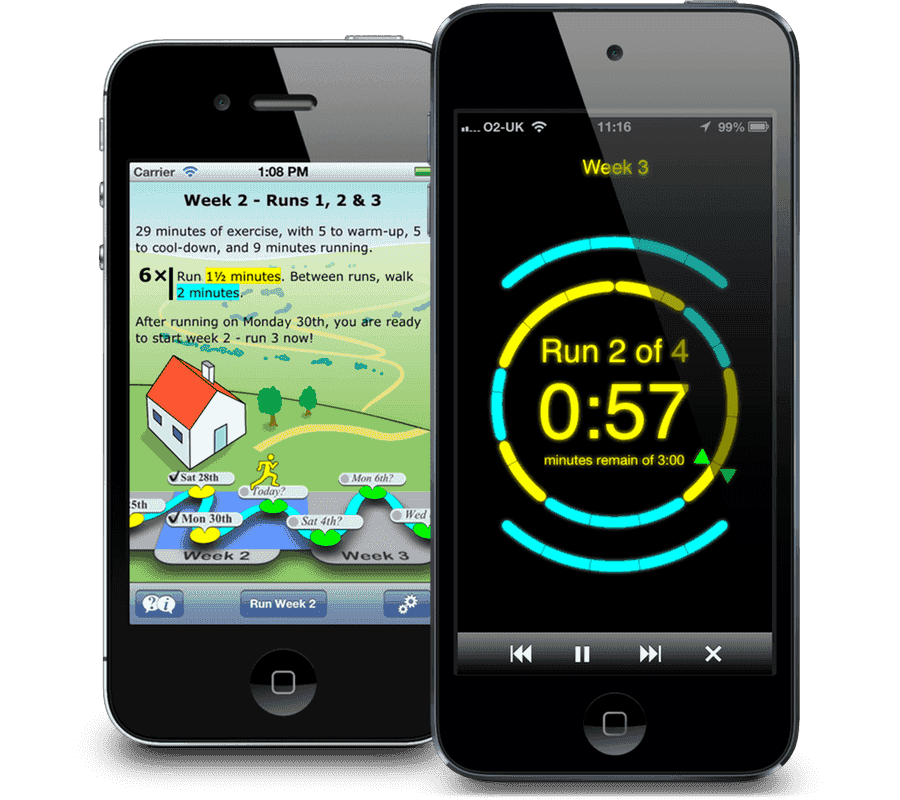
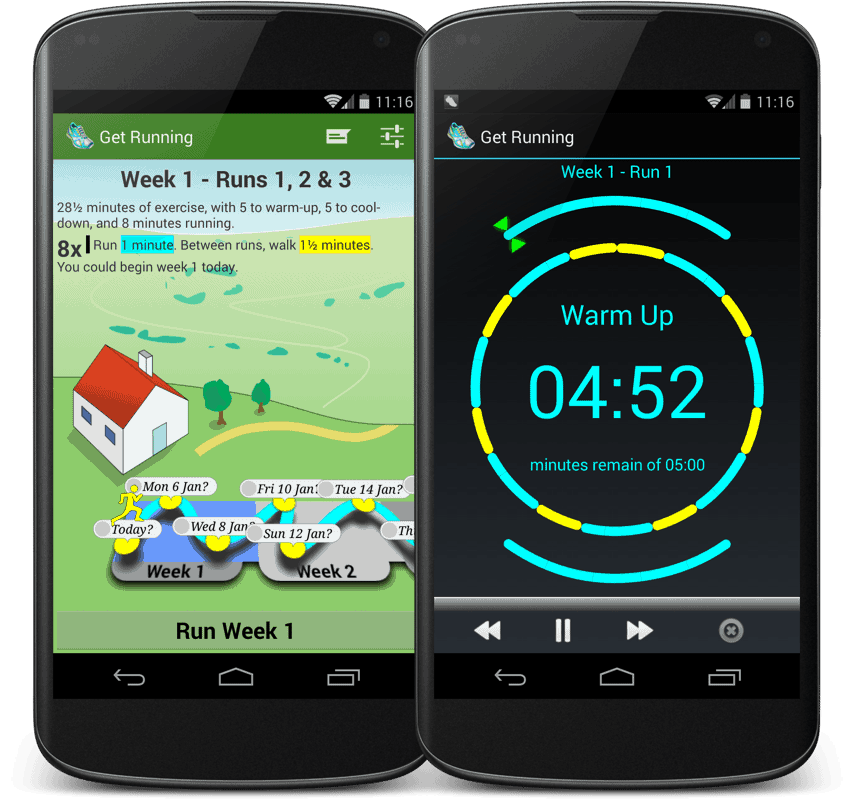
The first screen you see when you start Get Running on your iPhone will be the Progress Path. At the top you see everything you need to know to do your next run — which week of the plan you’re in, which run you’ll be doing, and what the run will be like.
At the bottom, you see your whole fitness plan laid out on a scrolling, touch-to-drag display, with your completed runs checked off, and your future runs planned out in front of you. The Runner shows you exactly where you are along Get Running’s path to fitness.
You can easily browse through the weeks ahead. Just tap anywhere on the Progress Path to see what running you'll be doing in that week.
At the bottom of the screen is the Run! button. Get your running shoes on, get ready, and push the Run! button to be taken to the next screen — the Run Clock.
If you want to skip backward or forward through the Get Running plan, perhaps to repeat a week, then just choose that week in the Progress Path before you hit the Run! button. Get Running will ask you if you're sure, then carry on from that week.
Run Clock
Get Running’s Run Clock is a beautiful — dare we say “sexy”? We dare! — animated running meter. The Run Clock divides your run up into segments for walking, segments for running, and segments for warming up and cooling down.
As the Run Clock ticks away, Get Running’s voice instructions guide you throughout your run, always letting you know exactly what you need to do.
The circular dial of the Run Clock represents your run. As you run, the green arrows tick off your progress around the circle. Blue segments of the circle are for walking, yellow segments are for running. The curves above and below the Run Clock are for the warm-up and warm-down.
In the middle of the Run Clock is the countdown timer. This timer shows you at a glance how long you have left of each section of your run.
At the bottom of the Run Clock are the Run Controls. If something interrupts your run, or if you just want to listen at home to get prepared, you can pause, rewind and fast forward through any section. You can also stop a run early, either discarding it or marking it as complete.
Every completed run the Run Clock guides you through will be added to your Progress Path.
Voice Instructions
Get Running has hundreds of studio-recorded voice instructions, to prompt you at every step of the way, so you always know what to do. Get Running’s friendly voice guides you before, during, and after every section of every run.
But you don’t have to take our word for it — have a listen right now! Here a just a few of the Get Running voice instructions.
Music
There are no music options in Get Running, because it doesn’t take over your iPod or iPhone. Just start your music in the normal way, and then Get Running! (Don’t forget to choose a nice energetic playlist!)
Assuming you've got the latest iPhone/iPod Touch software (version 3 or above), Get Running will smoothly fade your music down for each voice instruction, then fade it back up again once it's told you what you need to know.
Buy
It's as simple as that. Follow the Get Running plan, get outdoors, get fitter, get healthier! Check out Get Running at the App Store now!